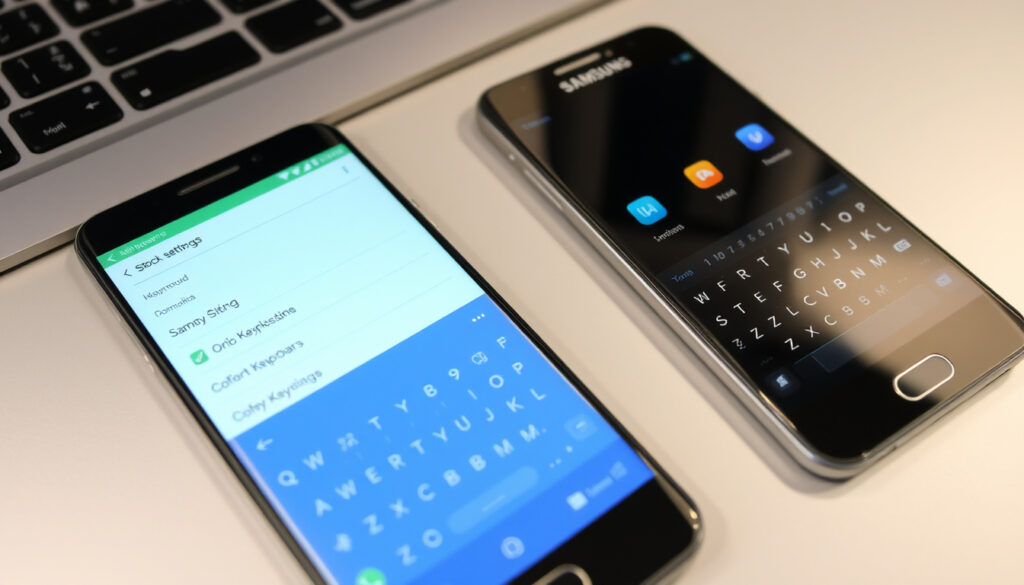
How to Change Keyboard on Android: Stock & Samsung
Most Android phones ship with a keyboard that does the job, but after a few weeks of autocorrect fails or a cramped layout, you start wondering if there’s something better waiting in the settings. There is — and switching takes less than a minute once you know where to look. This guide walks you through changing your default keyboard on both stock Android and Samsung Galaxy devices, along with how to reset everything when you want your old keyboard back.
Default Keyboard: Gboard ·
Stock Android Path: Settings > System > Languages & input > On-screen keyboard ·
Samsung Path: Settings > General management > Samsung Keyboard settings ·
Top Change Method: Toggle in Virtual keyboard menu ·
Gboard Setup Source: Google Support
Quick snapshot
- Samsung Keyboard ships on Galaxy phones with three keyboard modes: Standard, One-handed, and Floating (Samsung Canada Official Support)
- Exact default keyboard varies by OEM skin — Pixel uses Gboard, but third-party Android skins may differ
- Keyboard customization features remain consistent across current Samsung Android versions
- Samsung offers four distinct reset options, including clearing cache without removing downloaded languages
Three settings paths matter across the Android ecosystem: one for stock Android, one for Samsung Galaxy devices, and a universal toggle that works on either. The table below maps the key paths and defaults.
| Label | Value |
|---|---|
| Primary Path (Stock) | Settings > System > Languages & input > On-screen keyboard |
| Samsung Path | Settings > General management > Samsung Keyboard settings |
| Default App | Gboard |
| Enable New Keyboard | Toggle in Virtual keyboard menu |
The implication: Samsung users must follow a different menu branch than stock Android, so knowing your device type determines which path to follow.
How to change keyboard style on Android?
The keyboard you see right now is your default — the system loads it wherever you tap a text field. To swap it for something with a different look or feel, you need to do two things: enable the new keyboard as an input option, then promote it to default.
Enable a new keyboard app
Before Android lets you type with a new keyboard, it needs permission to use it as an input method. On stock Android, open Settings > System > Languages & input > On-screen keyboard, and you’ll see every keyboard installed on your device. Tap the one you want and flip the switch to enable it.
Samsung Galaxy users follow a slightly different path: head to Settings > General management > Samsung Keyboard settings, then tap Keyboard list and default. From there, toggle on the keyboard you want to add to your input options (Samsung US Official Keyboard Guide).
Switch styles in Gboard settings
Gboard, Google’s keyboard that ships as the default on most stock Android devices, lets you change theme, key size, and correction settings all in one place. Tap the gear icon when Gboard is open, then explore Theme for visual changes or Preferences for typing behavior (Google Gboard Official Setup Guide).
To switch to Gboard if you’re coming from another keyboard, go to Settings > System > Languages & input > On-screen keyboard, select Gboard, and set it as your default input method.
Customize Samsung Keyboard
Samsung Keyboard offers six customization categories: language, layout, themes, size, feedback, and custom symbols. You can access these by tapping the settings icon directly from the keyboard toolbar, or by navigating through the Settings menu (Samsung Canada Keyboard Settings Guide).
The keyboard toolbar itself can be toggled on or off in Samsung Keyboard settings — flip the switch next to “Keyboard toolbar” to show or hide it from view.
On Samsung Galaxy phones, you don’t need to download a new keyboard to get a fresh look — Samsung Keyboard itself offers theme customization, size adjustment, and three distinct modes (Standard, One-handed, Floating) directly from the built-in settings.
How do I get my keyboard back to normal on Android?
If your keyboard has started suggesting odd words, misbehaving after an update, or just feels wrong after you’ve tweaked settings, resetting it to defaults is the fastest fix. The process differs slightly between Samsung and stock Android, but neither takes more than a minute.
Reset keyboard settings
On Samsung Galaxy phones, resetting keyboard settings is straightforward. Navigate to Settings > General management > Samsung Keyboard settings, then tap Reset to default settings. A confirmation prompt appears — tap Reset to confirm. Critically, this does not remove any downloaded languages you have added to the keyboard (Samsung US Official Keyboard Guide).
Revert to default Gboard
For Gboard on stock Android, clearing recent data and resetting suggestions works differently. Open Gboard, tap Settings, then navigate to Text correction and look for the option to clear personalized data. This removes learned words and predictions while keeping your installed languages intact.
Clear keyboard app cache
Both Samsung Keyboard and Gboard store temporary data that can occasionally cause quirks. On Samsung Galaxy phones, you can clear this cache from within the keyboard reset menu: open Settings > General management > Samsung Keyboard settings > Reset To Default Settings and use the Clear cache option. On stock Android, you clear app cache through Settings > Apps > Gboard > Storage > Clear cache (YouTube Samsung Galaxy A25 Keyboard Reset Tutorial).
What this means: cached data builds up over time and can interfere with keyboard responsiveness, so clearing it often resolves mysterious lag or misbehavior.
What is the default keyboard on Android?
Google’s Android is an operating system that device makers customize, so the default keyboard varies by manufacturer. Knowing what ships on your device tells you where to look for settings.
Gboard as stock default
Google’s Gboard is the default keyboard on Pixel phones, Android One devices, and most phones that run a clean or near-clean version of Android. It’s available as a free download from the Play Store for any Android device running version 5.0 or later.
Samsung Keyboard on Galaxy devices
Samsung Galaxy phones come with Samsung Keyboard pre-installed as the default. Samsung Keyboard offers three keyboard modes: Standard keyboard, One-handed keyboard, and Floating keyboard. One-handed mode shifts the keyboard to the right side of the screen, with an option to shift it left using the Left arrow icon (Samsung Canada Keyboard Settings Guide).
Check your current default
The easiest way to check which keyboard you’re currently using is to open any app with a text field, then look at the top-left corner of your keyboard. Samsung Keyboard shows a small logo there; Gboard shows Google’s “G” logo. You can also check in Settings > System > Languages & input > On-screen keyboard on stock Android or Settings > General management > Keyboard list and default on Samsung Galaxy.
How do I change to another keyboard?
Switching keyboards entirely — not just tweaking the one you have — involves installing a new app first, enabling it as an input method, then setting it as your default. Here’s how that works across Android devices.
Install keyboard app first
Open the Play Store (or Galaxy Store on Samsung devices) and search for the keyboard you want. Popular alternatives include Gboard, SwiftKey, Grammarly Keyboard, and Fleksy. Download and install the app before you do anything in settings (Samsung US Official Keyboard Guide).
Set as default input method
After installing, return to your phone’s settings. On stock Android: Settings > System > Languages & input > On-screen keyboard. On Samsung Galaxy: Settings > General management > Samsung Keyboard settings > Keyboard list and default. Toggle on your new keyboard, then tap Default keyboard to promote it to the active default (YouTube Keyboard Change Tutorial).
Switch during typing
Once you have multiple keyboards enabled, you can switch between them on the fly by tapping the globe icon on the keyboard itself. This cycles through all enabled input methods without opening settings.
The pattern: third-party keyboards expand what your phone can do, but you must explicitly grant them permission before they activate — Android’s security model requires this step.
How to change keyboard language on Android?
Typing in a language your keyboard doesn’t know means fighting autocorrect on every word. Adding languages is built into both Samsung Keyboard and Gboard, and the process takes less than a minute.
Add languages in Gboard
Open any app to bring up Gboard, then tap the gear icon to open Gboard Settings. Navigate to Languages > Add language, and select the language you want. Gboard downloads any additional data needed and makes that language available immediately. To switch between languages while typing, tap the globe icon (Google Gboard Official Setup Guide).
Manage input layouts
On Samsung Galaxy phones, adding keyboard languages follows a different path. Open Settings > General management > Samsung Keyboard settings, then tap Languages and types > Manage input languages. Toggle on the languages you want, or tap the download icon next to a language to download the data file before adding it (Samsung US Official Keyboard Guide).
Samsung language settings
To switch between keyboard languages on Samsung Keyboard while typing, tap the language icon — marked with a globe symbol — in the keyboard itself. This cycles through your enabled languages one at a time. You can also long-press the globe icon to see a full list of available languages.
Samsung Keyboard offers six customization categories (language, layout, themes, size, feedback, custom symbols) and four distinct reset options that don’t wipe your downloaded languages.
Step-by-step: How to change your keyboard on Android
Whether you’re on stock Android or a Samsung Galaxy phone, the process follows the same logic: enable the keyboard first, then set it as default. Follow the steps below for your device type.
For stock Android (Pixel, Android One, etc.)
- Open Settings on your phone.
- Tap System > Languages & input.
- Select On-screen keyboard.
- Choose your new keyboard from the list and enable it.
- Return to the On-screen keyboard screen and set your preferred keyboard as default.
For Samsung Galaxy devices
- Open Settings on your Galaxy phone.
- Go to General management > Samsung Keyboard settings.
- Tap Keyboard list and default.
- Toggle on the keyboard you want to enable.
- Tap Default keyboard and select your preferred option.
Upsides
- Switching keyboards takes under a minute with the right path
- Samsung Keyboard offers three modes (Standard, One-handed, Floating) without downloading anything extra
- Resetting keyboard settings preserves downloaded languages
- Multiple keyboards can coexist — switch between them with the globe icon
Downsides
- Settings paths differ between stock Android and Samsung — what works on one may not work on the other
- Third-party keyboards may request additional permissions beyond text input
- Clearing keyboard cache or reset options requires navigating into keyboard-specific menus
- Some keyboard features (like S Pen handwriting) require compatible hardware
“On your Android phone or tablet, open any app that you can type with. You can change your keyboard’s language, turn on voice typing, or adjust auto-correction settings.”
“Navigate to and open Settings, then tap General management, and then tap Samsung Keyboard settings. From here, you can reset keyboard settings, change your language, adjust keyboard size, and more.”
— Samsung US Official Keyboard Guide
“Head to the Settings app. Then, tap on ‘System’ and then on ‘Languages & input.’ From there, you can access your keyboard list, enable new keyboards, and set your preferred default.”
Related reading: Samsung Galaxy Note 10 Plus
Frequently asked questions
Can I change my keyboard layout?
Yes. Both Samsung Keyboard and Gboard let you adjust keyboard layouts. On Samsung, navigate to Settings > General management > Samsung Keyboard settings and look for layout options under Languages and types. On Gboard, open the keyboard, tap Settings > Languages, and configure per-language layouts.
How to change keyboard on Android Samsung?
Go to Settings > General management > Samsung Keyboard settings > Keyboard list and default. Toggle on the keyboard you want to enable, then tap Default keyboard to set your preferred one. You can also access keyboard settings directly by tapping the gear icon in the keyboard toolbar.
How to change keyboard background on Android?
Samsung Keyboard includes built-in theme options. Open the keyboard and tap Settings (gear icon), then look for Theme to change the visual background. Gboard also offers theme customization under Settings > Theme when the keyboard is open.
How to change keyboard on Android color?
Color adjustments are handled through themes on Samsung Keyboard and Gboard. On Samsung, go to Settings > General management > Samsung Keyboard settings and select a theme that changes the keyboard’s color scheme. On Gboard, tap Settings > Theme while the keyboard is open.
How do I change the default keyboard on my Android phone?
On stock Android: Settings > System > Languages & input > On-screen keyboard, select your preferred keyboard, and set it as default. On Samsung Galaxy: Settings > General management > Samsung Keyboard settings > Keyboard list and default > Default keyboard. The keyboard you set here loads automatically in every app.
What happens after resetting keyboard settings?
On Samsung Galaxy phones, the reset option clears personalized predictions, touch recognition data, and cached data, while keeping your downloaded languages intact. A confirmation prompt appears before the reset takes effect. On stock Android, resetting Gboard clears learned words and predictions.
How to install a third-party keyboard?
Download a keyboard app from the Play Store (or Galaxy Store on Samsung devices). Popular options include Gboard, SwiftKey, and Grammarly Keyboard. After installation, enable the keyboard in your device settings — on stock Android, go to Settings > System > Languages & input > On-screen keyboard; on Samsung, go to Settings > General management > Samsung Keyboard settings > Keyboard list and default.
Does changing keyboard affect autocorrect?
Changing keyboards does affect autocorrect because each keyboard app has its own prediction engine and learned vocabulary. When you switch keyboards, the new keyboard starts with default suggestions and builds its own learned dictionary based on your typing — it does not inherit predictions from your previous keyboard.
More related posts
 Guardians of the Galaxy: Watch Order, Ending & Future
 Liverpool FC vs Atlético Madrid Lineups: Confirmed XI
 When Are Leaving Cert Results Out 2026? Date, Points & Grading
 Woodies Galway Opening Hours & Senior Discount Guide
 Brentford F.C. vs Chelsea F.C. Timeline: Head-to-Head
 How to Opt Out of Organ Donation in Ireland | HSE Opt-Out Regi ter
 Harry Corry Liffey Valley – Store Status and Centre Guide
 iPhone 5 to Buy in 2026: Price, Worth, and Where to Find One