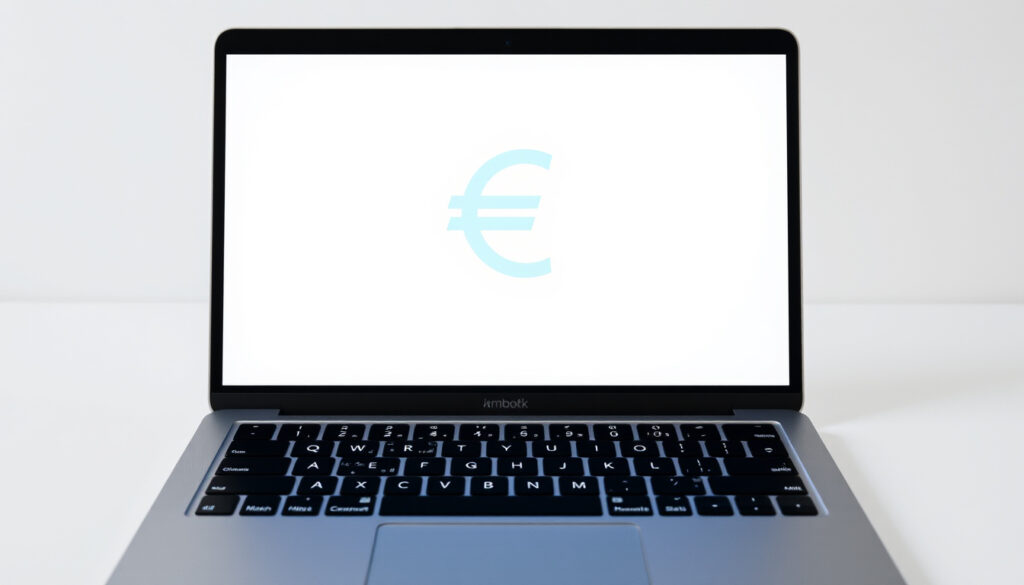
Euro Sign on Mac: Option+Shift+2 Shortcut
Press Option+Shift+2 simultaneously on US keyboards to type € instantly.
British and Dutch layouts use Option+2, while French uses Option+$ instead.
Open via Control+Shift+Space or through Edit > Emoji & Symbols menu in any app.
Set up text replacement in System Settings > Keyboard > Text for automatic € typing.
Typing the euro sign on a Mac requires knowing the right keyboard shortcut or alternative method for your specific setup. The process differs significantly depending on your keyboard layout, and what works on one Mac configuration may produce unexpected characters on another.
Quickest Way to Type €
Press Option+Shift+2 to insert the euro symbol immediately on most US keyboards. This shortcut has been standard across Mac models for years and requires no system configuration changes. Simply hold the Option (Alt) key and the Shift key together, then press the 2 key to output €.
The shortcut works reliably in any application—text editors, browsers, spreadsheets, and messaging apps all respond to this system-wide combination. If you’re using a MacBook with the standard US layout, this method should produce the euro sign without fail.
If you notice the shortcut produces the trademark symbol (™) instead, your keyboard input source is likely set to a layout that assigns different characters to this key combination. Dutch keyboard users frequently encounter this issue, as the Dutch layout assigns ™ to Option+Shift+2 rather than €.
If you frequently work with multiple European currencies, consider setting up a text replacement shortcut for instant access without memorizing layout-specific combinations.
Alternative Methods
When keyboard shortcuts fail or you’re using an unfamiliar layout, the Character Viewer provides a reliable fallback that works across all Mac configurations.
Using Character Viewer
Press Control+Shift+Space to open a compact character picker, then click the expand button for the full Character Viewer window. Navigate to the Currency Symbols section and double-click the euro sign to insert it into your document. This method bypasses keyboard layout restrictions entirely since you’re selecting characters visually rather than triggering combinations.
You can also access the Character Viewer through the Edit menu in most macOS applications: select Edit > Emoji & Symbols (or Edit > Special Characters on older systems), then search for “euro” in the search field. This approach works consistently whether you’re on a MacBook Air, MacBook Pro, or an iMac with an external keyboard.
Copy and Paste
The simplest alternative remains copying € from a known source like this page, then pasting it into your target application. While not ideal for frequent use, this method requires no configuration and works immediately.
- Character Viewer bypasses all keyboard layout restrictions and works universally across macOS versions
- Control+Shift+Space opens the mini character picker from anywhere
- Copy-paste is the fastest method when you only need to insert € once
Mac Keyboard Layout Variations
The keyboard shortcut for inserting € varies significantly depending on which input source you’ve selected in System Settings. Understanding your current layout prevents confusion and wasted troubleshooting effort.
| Layout | Shortcut | Notes |
|---|---|---|
| US | Option + Shift + 2 | Standard shortcut; produces € reliably |
| British | Option + 2 | No Shift required |
| Dutch | Option + 2 | May produce ™ on some configurations |
| French | Option + $ | Layout-specific |
| German | Option + E | Followed by Space |
| Italian | Option + I | Layout-specific |
| Spanish | Option + U | Layout-specific |
To verify or change your keyboard layout, open System Settings > Keyboard > Input Sources. Adding a US layout to your input sources enables the Option+Shift+2 shortcut, though it may shift the positions of other characters like the dollar sign. The Keyboard Viewer (accessible via the Input menu in your menu bar once enabled) shows exactly which combinations your current layout supports.
Users with physical European keyboards who need the US shortcut may find that swapping keycaps or using keyboard overlay labels helps match their muscle memory to the US layout’s shortcuts.
Troubleshooting Common Issues
When the standard euro shortcut produces unexpected results, systematic troubleshooting helps identify the root cause quickly.
If Option+Shift+2 produces ™ instead of €, your input source is likely set to Dutch or another layout that assigns different characters to this combination. Switch to a US keyboard layout through System Settings to resolve this mismatch between your expected shortcut and actual keyboard behavior.
If the shortcut produces no output whatsoever, verify your keyboard is functioning by testing other modifier combinations. Check whether software conflicts exist, ensure Caps Lock is off, and try restarting the affected application. Some apps like Google Sheets handle keyboard shortcuts independently from system defaults, meaning a shortcut that works everywhere else may fail in specific applications.
If € appears as a hollow box or missing character, your current font may not include the euro symbol glyph. Switch to a standard font like Arial, Helvetica, or Times New Roman, which reliably support the euro character across all macOS versions.
Apps with custom keyboard shortcut configurations may override system-level combinations. If the euro shortcut works in TextEdit but not in your spreadsheet application, check the app’s keyboard preferences for conflicts.
When using external keyboards, ensure Num Lock is disabled if your keyboard includes a numeric keypad, as some configurations interfere with modifier key behavior.
Permanent Euro Sign Solutions
For users who type the euro sign frequently, setting up an automated text replacement eliminates the need to remember specific shortcuts or navigate character pickers.
Open System Settings > Keyboard > Text Replacements and add a new entry: enter a trigger phrase like “euro” or “//e” in the “Replace” field, and enter € in the “With” field. From now on, typing your trigger automatically expands to the euro symbol across all applications.
This method persists system-wide and survives restarts, making it the most reliable long-term solution for frequent users. The trigger can be anything you choose—many people prefer short abbreviations that feel natural in their typing flow.
Advanced users with specific layout requirements can create custom keyboard layouts using applications like Ukelele, which allows complete remapping of key assignments. This provides maximum flexibility but requires more technical setup time.
| Sign/Situation | Risk Level | Recommended Action | Urgency |
|---|---|---|---|
| Option+Shift+2 produces ™ instead of € | Medium | Check input source settings; switch to correct keyboard layout | Medium |
| Shortcut produces no output whatsoever | High | Verify keyboard is functioning; test other keys; check for software conflicts | High |
| Euro appears as hollow box or missing character | Low | Verify font supports euro symbol; switch to standard font like Arial | Low |
| Keyboard has no 2 key in standard position | Medium | Use Character Viewer or reconfigure input sources | Medium |
| Shortcut works in some apps but not others | Low | Check app-specific keyboard shortcuts; some apps override system shortcuts | Low |
Step-by-Step Action Checklist
- Locate the Option, Shift, and 2 keys on your Mac keyboard
- Press and hold Option+Shift simultaneously
- Press the 2 key while holding both modifier keys—€ should appear
- Verify your input source is set to US layout in System Settings > Keyboard > Input Sources
- If the shortcut fails, open Character Viewer via Control+Shift+Space
- Search for “euro” in Character Viewer and double-click the symbol to insert
- For permanent solution, set up text replacement in System Settings > Keyboard > Text
Frequently Asked Questions
What is the keyboard shortcut for the euro sign on Mac?
For US keyboards, press Option+Shift+2 simultaneously. British and Dutch keyboards typically use Option+2, while French keyboards use Option+$. If these don’t work, check your input source settings or use the Character Viewer method.
Why does Option+Shift+2 produce the trademark symbol instead of €?
Your keyboard layout is likely set to Dutch or another European configuration that assigns ™ to that key combination. Switch to a US keyboard layout in System Settings > Keyboard > Input Sources to resolve this.
Can I add the euro sign to my keyboard permanently?
Yes. Set up a text replacement in System Settings > Keyboard > Text. Add a trigger like “euro” or “//e” and set the replacement to €. This works system-wide across all applications.
Why won’t the euro sign shortcut work in Google Sheets?
Some applications handle keyboard shortcuts independently from macOS system defaults. Google Sheets may not recognize the Option+Shift+2 combination. Try using Character Viewer, copy-paste, or check the app’s keyboard shortcut preferences for conflicts.
How do I type the euro sign on a MacBook without a numeric keypad?
MacBooks use the same Option+Shift+2 shortcut for euro on standard US layouts. For European layouts, the shortcuts vary—British and Dutch use Option+2, while other European layouts use different key combinations. Character Viewer (Control+Shift+Space) works on all MacBook models regardless of layout.
What should I do if the euro sign appears as a box or blank character?
Your current font doesn’t include the euro symbol glyph. Switch to a standard font like Arial, Helvetica, or Times New Roman, all of which support € reliably on macOS.
Which Mac models support the euro shortcut?
All modern Mac models including MacBook Air, MacBook Pro, iMac, Mac Mini, and Mac Studio support the euro keyboard shortcut. The functionality works identically across Intel-based and Apple Silicon (M1/M2/M3/M4) Macs running current macOS versions.
For more productivity guidance on common tech tasks, browse our full collection of Mac tutorials.
Users with specific workflow needs might also find our detailed system configuration guides helpful for customizing their Mac experience beyond currency symbols.
More related posts
 How Many Hours in a Year – 8,760 Common, 8,784 Leap
 Justin Kelly Garda Commissioner: Salary, Age, Background
 PSG vs Tottenham Stats: Head-to-Head Record & Match History
 Our Lady of Clonfert: 700-year-old statue, shrine, mass times
 How to Create a New Gmail Account: Step-by-Step
 Cheltenham Gold Cup 2026: Gaelic Warrior Wins by 10 Lengths
 Asics Novablast 5 Women – Plush Daily Trainer Review
 Cast of Breaking Bad: Full List of Actors and Characters